


Polypane is a browser built from the ground up to create websites and apps and it just released version 2.1 with some nice new features. The aim is to give you better insights into your site and make the entire developer/designer workflow faster and the features to do so is pretty great.
What's new?
Quick list of the major new features:
- Live CSS Edit all panes at the same time
- Social media previews See what your page looks like when shared on Facebook, Slack, Twitter and LinkedIn.
- Meta info Get a full overview of all your meta tags
- Handoff / browse Use Avocode, Zeplin and more directly in Polypane
- Workspaces UI Quickly switch between your favorite pane sets
Beyond that, we also added network throttling, new and improved overlays, better indicators, ways to detect when your site is shown in Polypane, speed improvements, and many more smaller features.
You can read all the changes here:
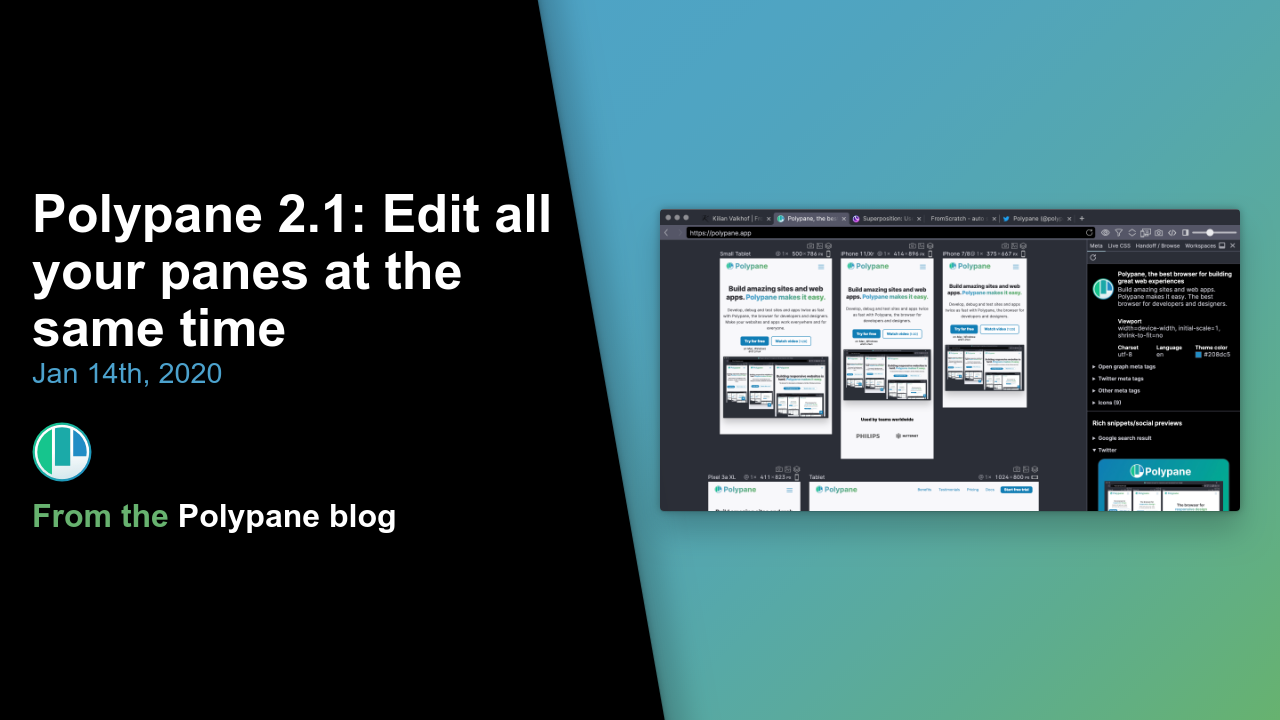
Polypane 2.1: Edit all your panes at the same time | Polypane browser for dev & design
POLYPANE.APP
With Polypane, we want to give you better insights into your site and make the entire developer/designer workflow faster…
---
If you do not know what Polypane is, then maybe this short video can help explain it.
Experienced Senior Atlassian tools & Work Process Expert helping organizations work better holistically - for real and without buzzwords.
Recommended Comments
Create an account or sign in to comment