Skip to content
View in the app

A better way to browse. Learn more.

JimiWikman.se

A full-screen app on your home screen with push notifications, badges and more.

To install this app on iOS and iPadOS
  1. Tap the Share icon in Safari
  2. Scroll the menu and tap Add to Home Screen.
  3. Tap Add in the top-right corner.
To install this app on Android
  1. Tap the 3-dot menu (⋮) in the top-right corner of the browser.
  2. Tap Add to Home screen or Install app.
  3. Confirm by tapping Install.

Take your community to the next level with webhooks

The Invision Community platform is capable of integrating with other powerful services, creating a unified system of connections with the click of a button.

One of the greatest benefits of integrating with Invision Community is instant expanded functionality. This is often done through an API (application programming interface), which allows our platform to seamlessly communicate with third-party developed software like Google, Zapier and SendGrid.

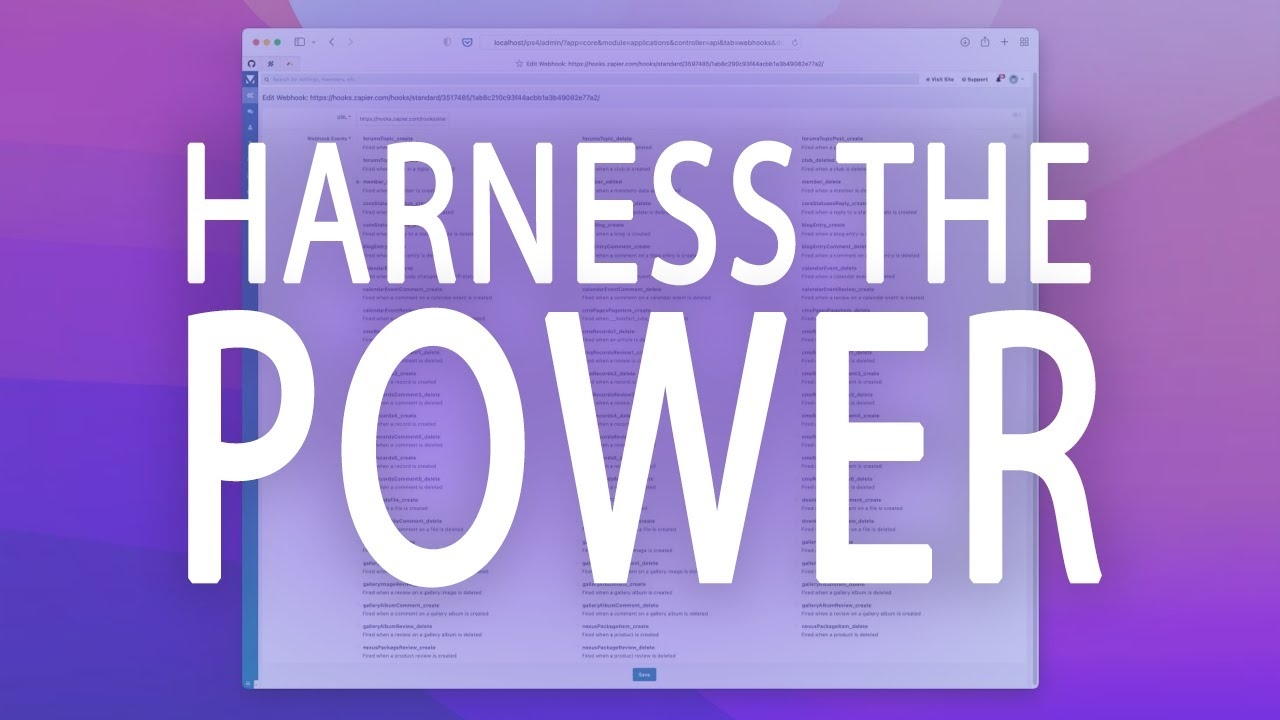
We also use webhooks to integrate. Webhooks allow other services and applications to stay in sync with your community data or to perform an action after a specific event occurs in your community.

We spoke with one of our developers, who walks us through webhooks, explains why they’re useful and shows us an example.

Added By 💫 Jimi Wikman

Submitted:

User Feedback

Recommended Comments

There are no comments to display.

Create an account or sign in to comment

My Latest Videos

Account

Navigation

Search

Search

Configure browser push notifications

Chrome (Android)
  1. Tap the lock icon next to the address bar.
  2. Tap Permissions → Notifications.
  3. Adjust your preference.
Chrome (Desktop)
  1. Click the padlock icon in the address bar.
  2. Select Site settings.
  3. Find Notifications and adjust your preference.