


Take your Jira workflows to the next level with AI-powered sessions, now seamlessly integrated with Rovo Dev in the cloud.
In this video, we’ll show you how Rovo Dev in Jira transforms the way you manage and deliver work—combining the intelligence of Rovo Dev CLI with the convenience of Jira and the power of your IDE.
What’s a Session?
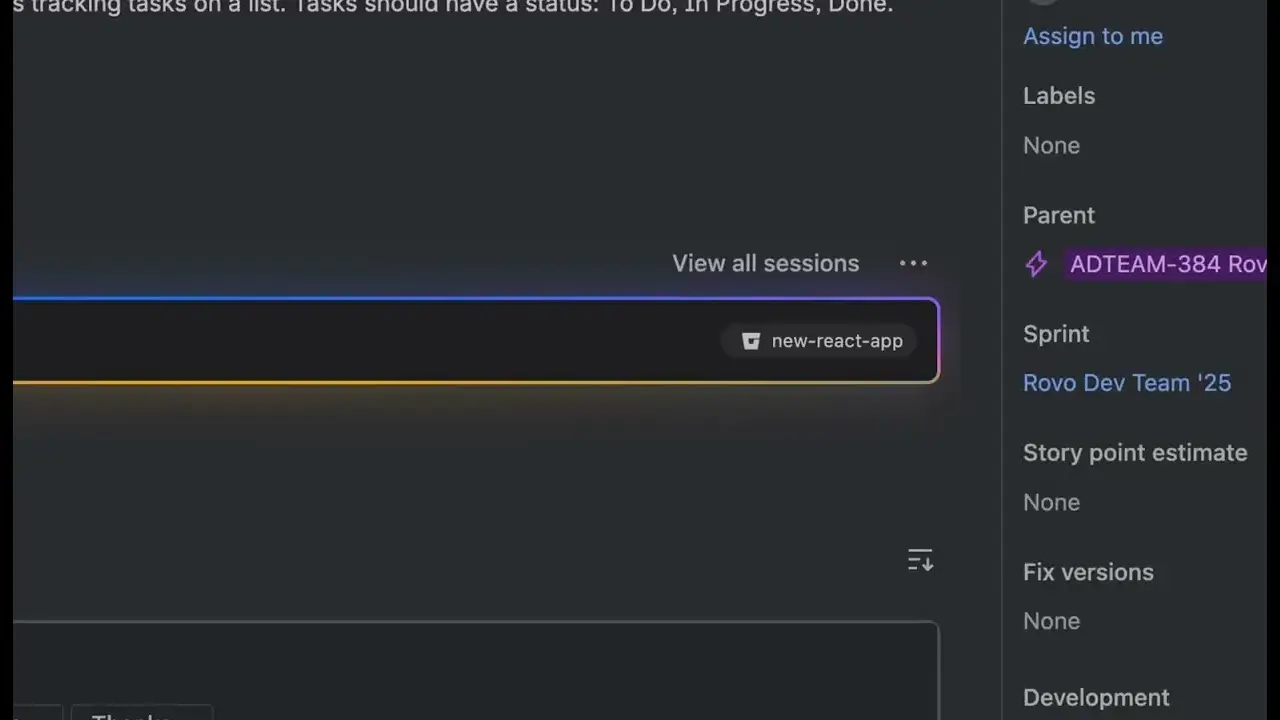
Rovo Dev in Jira is a self-contained, AI-driven workflow that helps you tackle Jira work items with unprecedented efficiency. Manage multiple sessions at once, each tailored to your specific tasks, and let the Rovo Dev Agent understand your context, coding standards, and project requirements.
Key Highlights:
Instantly start Rovo Dev from any Jira work item with a single click
Select the right repository and provide custom context for your agent
Configure branch names and source branches with ease
Generate code, review changes, and iterate, all within a dedicated session
Track work item status and see all your sessions, their outputs, and progress in one place
Effortlessly create pull requests and see them automatically linked to your Jira work items
Interact with the agent: tweak, interrupt, or guide it via chat for maximum control
See It in Action:
Watch as we walk through a real-world example, starting from a Jira work item, launching a session, generating code, reviewing changes, and creating a pull request.
Experience how Rovo Dev brings the power of your IDE to Jira, making your development process smarter and more autonomous.
Want to learn more?
Check out our full How-To series playlist for more tips and deep dives:
Recommended Comments
Create an account or sign in to comment